Stays quick and online
When bots flood a website with traffic, stillorigin limits how much any one source can send and turns away repeat offenders. Your website keeps working for the people who matter.
stillorigin / for website owners
stillorigin is a firewall your web host puts in front of the server your website lives on. It turns away bots and attacks, and it gives you your own page to see traffic and choose what to block — from AI crawlers to whole countries.
Every website gets unwanted visitors.
Not all traffic comes from people. Automated programs, called bots, visit websites all day. Some are useful, like search engines. Others try to guess passwords, look for weak spots, collect your content for AI models, or send so many requests at once that a website slows down or stops responding.
When that happens, it's your real visitors and customers who miss out.
Think of it as a security guard at the front door. Real visitors walk straight in. Bots and troublemakers are turned away before they get inside.
Your web host sets it up and looks after it. There's nothing to install on your website. The protection page comes with a Website protection licence, which your host turns on for your site.
When bots flood a website with traffic, stillorigin limits how much any one source can send and turns away repeat offenders. Your website keeps working for the people who matter.
Bad traffic is stopped before it reaches the server your website lives on. Your web host can also switch on extra rules that block common hacking attempts, such as requests for hidden settings files and backups.
Genuine visitors pass straight through. Search engines are recognised and given their own limits, so they can keep indexing your website without overloading it. Your host can also block fake crawlers: requests that pretend to be a known bot, such as Google, but aren't.
When a visit needs a check, the visitor sees a stillorigin-branded page that checks their browser automatically. People get through in a few seconds, with no puzzle to solve and nothing to click. Bots and scripts are stopped. A pass lasts 30 minutes.
If your website runs on WordPress, Drupal, Joomla or Laravel, your web host can turn on an extra hardening pack for that app, with more to follow. On WordPress, you can also lock the login page and admin area to IP addresses you choose, if your host allows it.
There's no plugin to install and no change to your website. Your SSL certificate (the padlock in the address bar) keeps working as it does now.
You don't need a stillorigin account. If your host gives your site a Website protection licence, they can give you a protection page for that site. In WHMCS or cPanel, you open it with a Manage protection button in your hosting account. Your host decides what you can change.
Your host can give you a stillorigin-branded page for your website. You open it from your hosting account — you don't create a stillorigin login. Under Attack is in the header, and the page is split into these sections:
Your host decides which of these you can change.
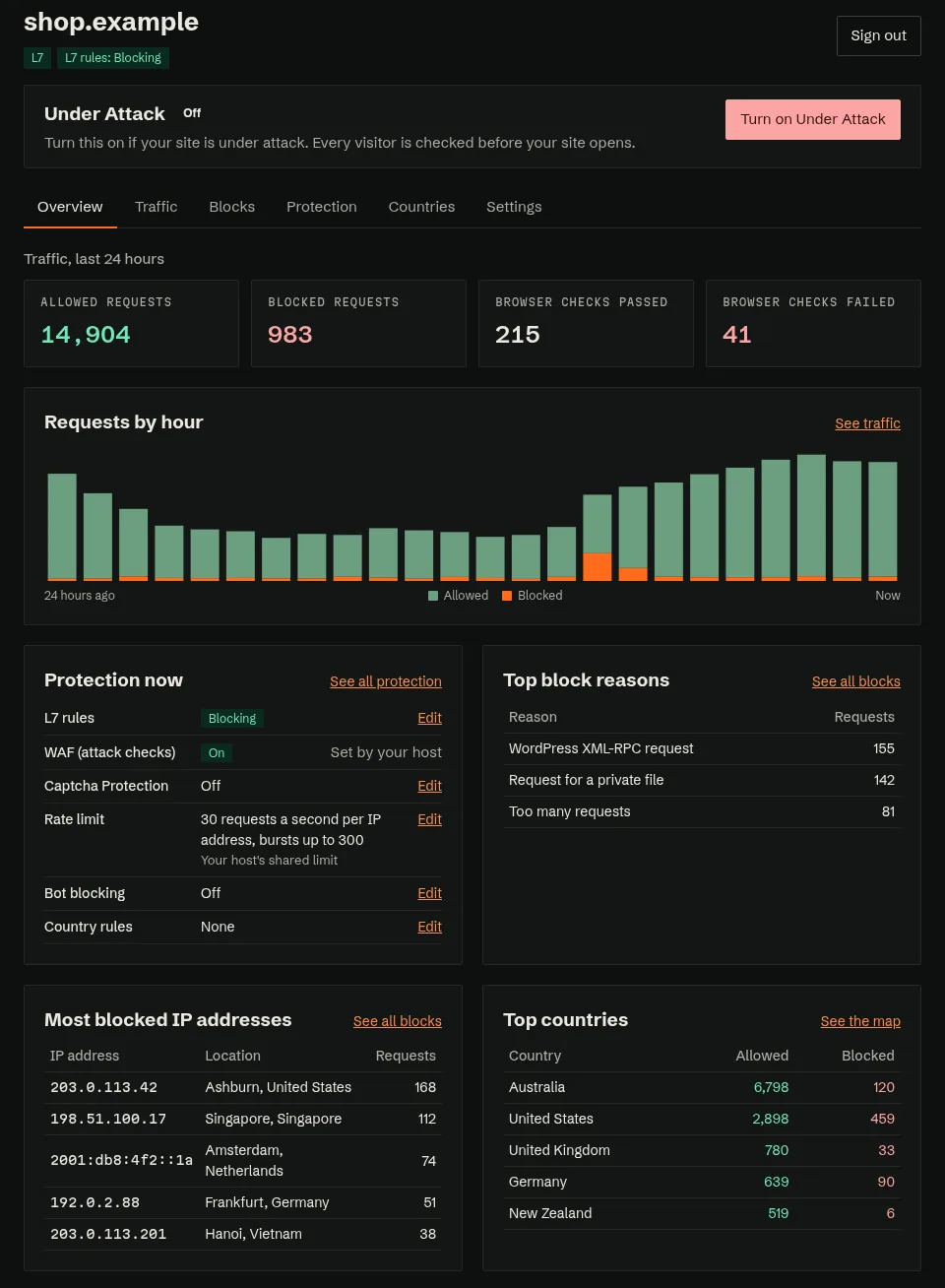
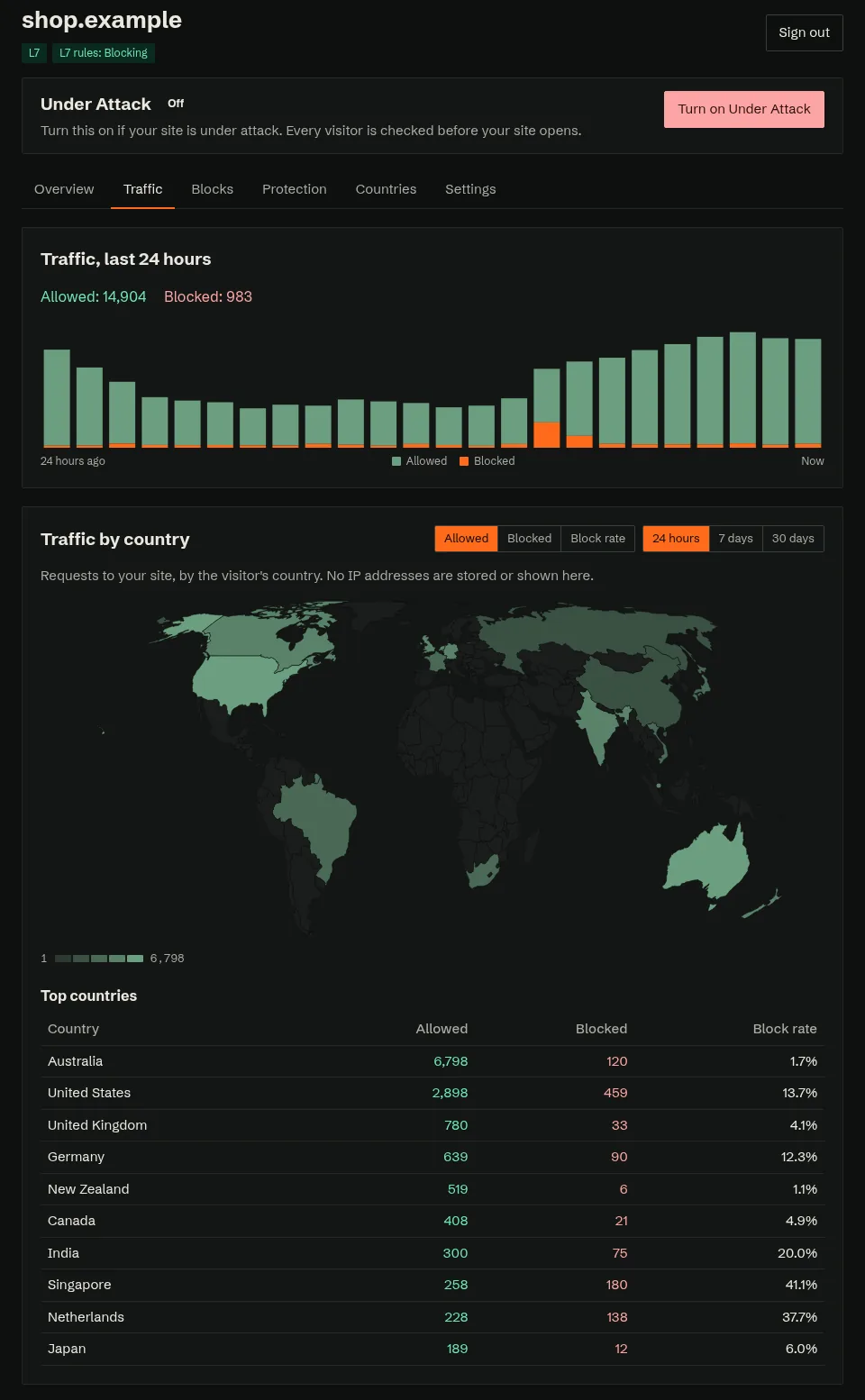
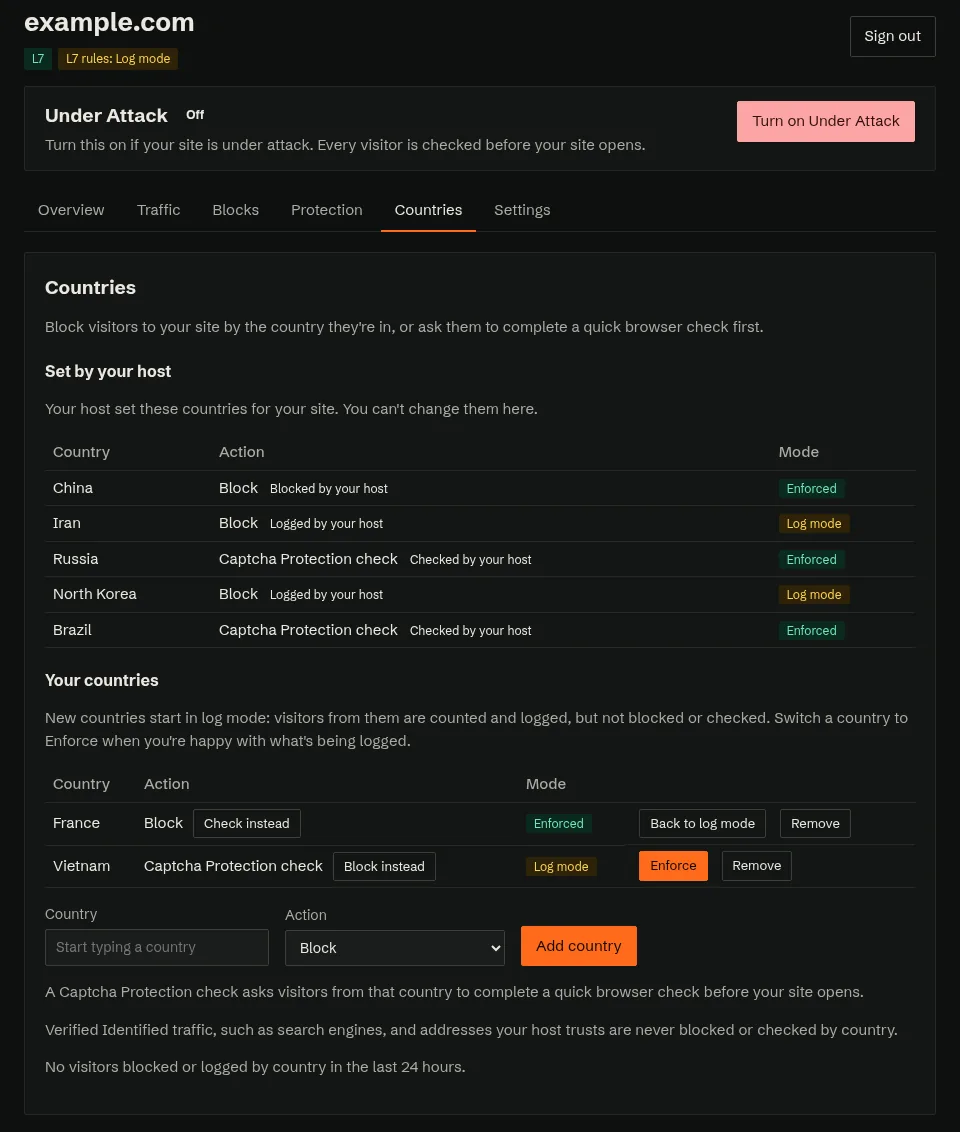
Screenshots use example data.
Add countries from a searchable list. Each one can either block visitors from that country, or show them a Captcha Protection browser check first. New countries start in log mode, so they're counted and logged but not blocked or checked. When you're happy with what you see, switch the country to Enforce. You can switch it back, change the action, or remove it at any time.
Countries your host has already set are shown locked, and you can't change them. Verified search engines and addresses your host trusts are never blocked or checked by country. Country rules work on sites with Website protection only.
If your site is under attack, turn on Under Attack. Every visitor is checked before the page opens. Other Captcha Protection checks still apply when it's off. You can use your host's Captcha Protection settings, or choose your own checks, if your host allows it.
Block services stillorigin identifies by their official IP addresses, such as AI crawlers, on your site. If you block a search engine, you'll be asked to confirm, because that can drop the site out of search results.
If your host blocks a service by default, you can allow it after a short warning. Check your hosting terms first, because some plans limit this kind of traffic. Blocks your host has set for everyone stay blocked; you can't turn those off.
If your site is WordPress, you can lock the login page and admin area to the IP addresses you list, if your host allows it. If your host has already turned the lock on, you can't change it.
Usually not. Your web host sets stillorigin up and looks after it. If you manage your own domain name settings (DNS), your host may ask you to update a record so your website's traffic goes through stillorigin. If your host has given your site a Website protection licence, you can open your protection page from your hosting account. You don't need to create a stillorigin account.
From your hosting account. If your host uses WHMCS, there's a Manage protection button on the service page. If they use cPanel, there's a Manage protection page under Security. Your host may also send you a one-time sign-in link. The page is for one website at a time, and only if that site has a Website protection licence.
It's designed not to. Your traffic makes one short extra stop on the way to your website, and real visitors pass straight through. By keeping bad traffic off your website's server, stillorigin helps it stay responsive for the people who matter.
Most won't notice anything. If a visit needs a check, they see a stillorigin-branded page that checks their browser automatically. People get through in a few seconds, with no puzzle to solve, and can then browse for 30 minutes.
Anyone can check their internet address at stillorigin.app/check. If it's on the stillorigin naughty list, the result has a Request delisting button. They need to request delisting from the listed address itself, and can have it removed once it has been verified. For anything else, your web host can help.
Ask your web host. They can tell you whether your website is behind stillorigin, whether it has a Website protection licence (which unlocks your protection page), and how to add it if it isn't.
Send them the message below, or get in touch and we'll help you ask them.
Your web host. They set up and manage stillorigin for your website, so they're the best people to help. stillorigin doesn't offer support to website owners. If your host doesn't offer stillorigin, contact us.
Ask your web host about stillorigin.
Talk to your web host to find out if your website is protected, or how to add it. If you'd like the protection page too, ask them to turn on Website protection for your site and give you access from the client area.
Hi, I'd like my website protected with stillorigin, and access to the owner area so I can see traffic and manage country blocks, AI crawlers and Captcha Protection. Can you turn on stillorigin Website protection for my site and add a Manage protection button in my hosting account?
If your host doesn't offer stillorigin, get in touch and we'll help you ask them.
Are you a web host? See how stillorigin works for hosts.